This is a step-by-step guide on how to bulk update administrators.
Administrator fields that can be bulk updated are name, email, phone, address, job classifications, account state, permission group, sites, and any administrator custom fields that have been created.
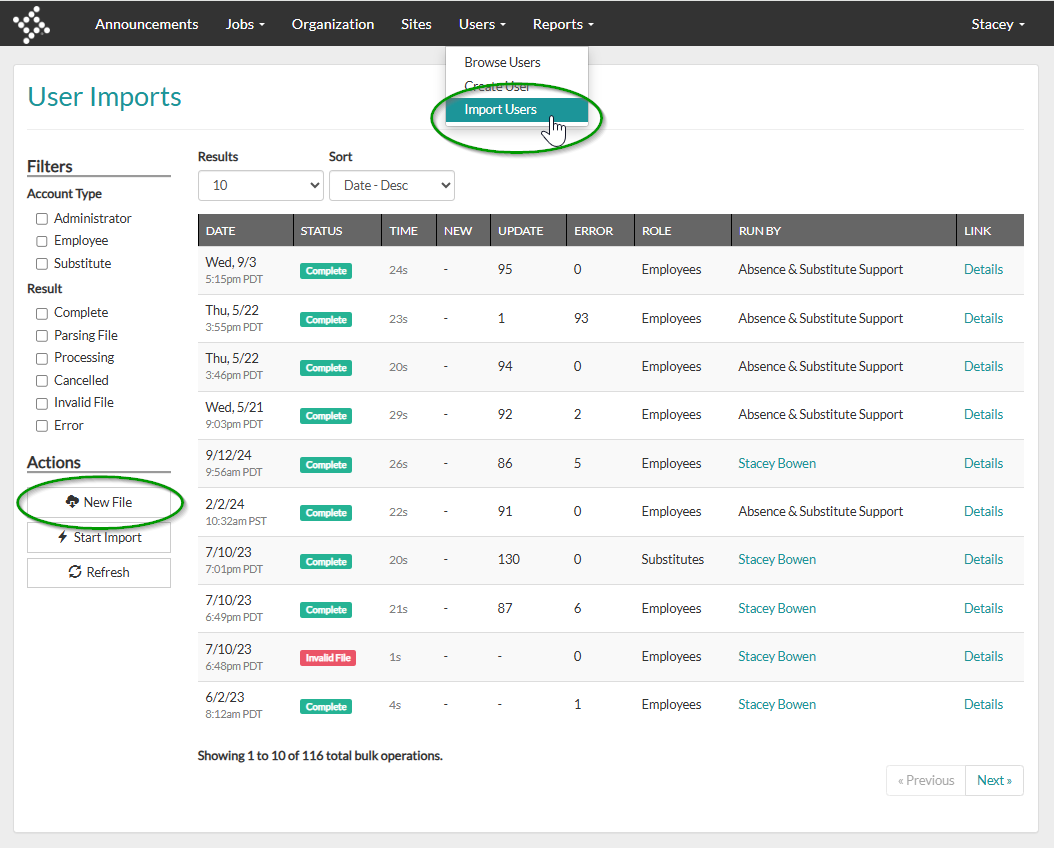
1. Navigate to Users > Import Users and click New File.
Note: If you do not see the Import Users and/or the New File options, read the Who can update bulk users solution record to confirm you have the correct permissions to view and/or perform bulk user updates.
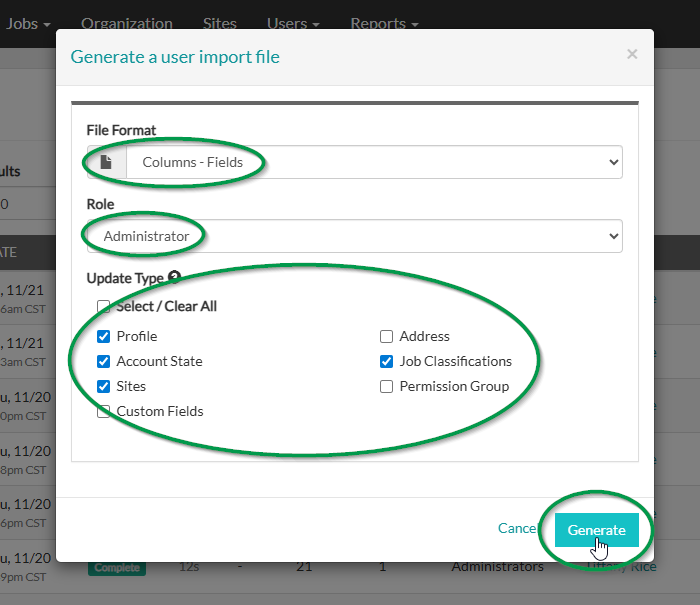
2. Select the File Format followed by the Administrator Role and the fields you would like to bulk update.
Note: There are two file types:
- Columns - Fields: Column headers have the fields (e.g., Site 1, Site 2, Site 3) and the cells have values (Harwood Elementary, Lake Middle School) to denote whether a user has that value
- Columns - Values: Columns headers have the values (e.g., Hardwood Elementary, Lake Middle School) and the cells have x's, blanks, or N/A's to denote whether a user has that value
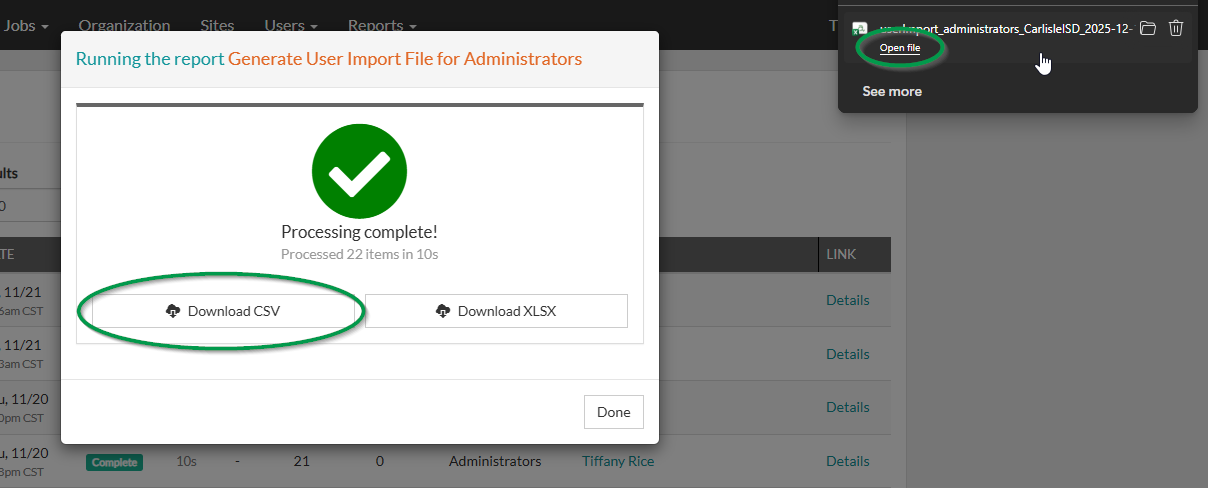
3. Once the file has finished generating, click Download CSV. followed by the Open icon within your browser.
Note: .CSV is the only importable format. Excel is not importable.
4. The file should open with the data you specified in step 2 of this guide.
Note: Within the .CSV file you can highlight all cells and double click between two of the columns to automatically adjust each column width to match the corresponding text for better visibility.
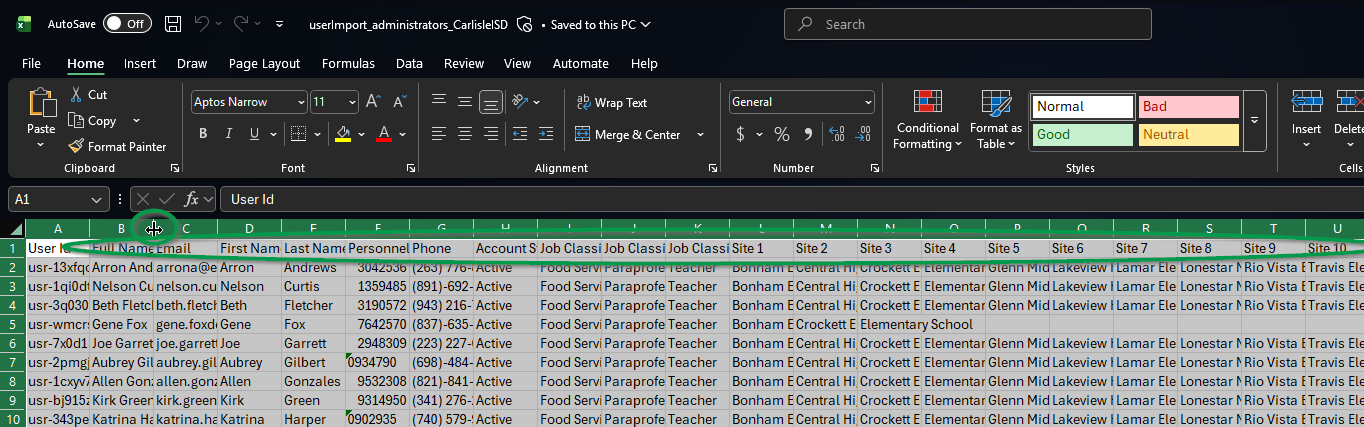
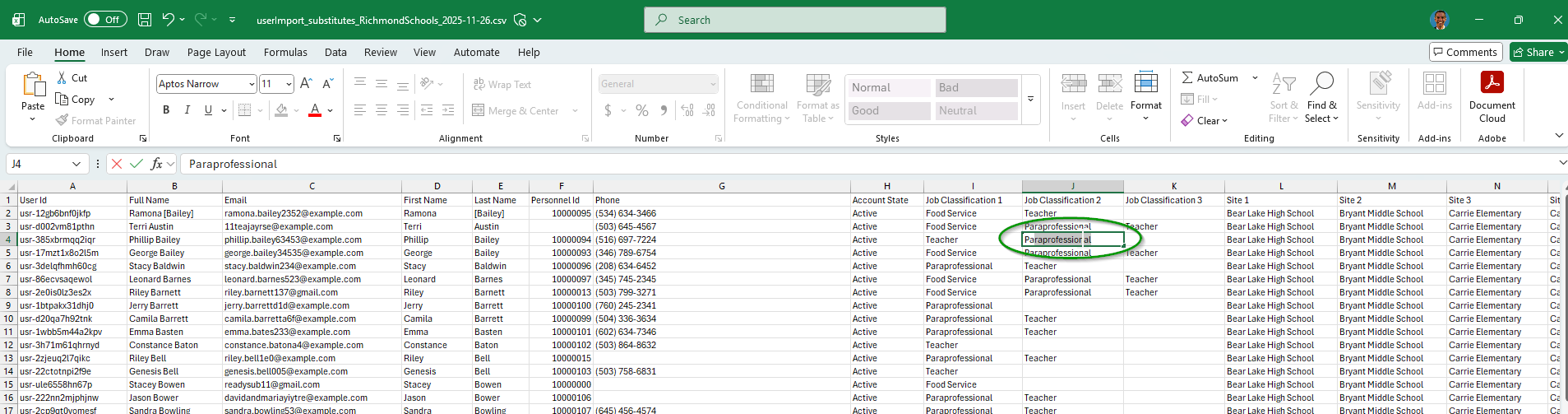
5. Make the necessary edits then save the updated .CSV file to your device.
Note: When using the Columns - Fields format, the Job Classification, Site, fields require values that already exist in Absence & Substitute. If a cell is edited to an unknown value (including typos), an error will be thrown for that user when re-importing the file.
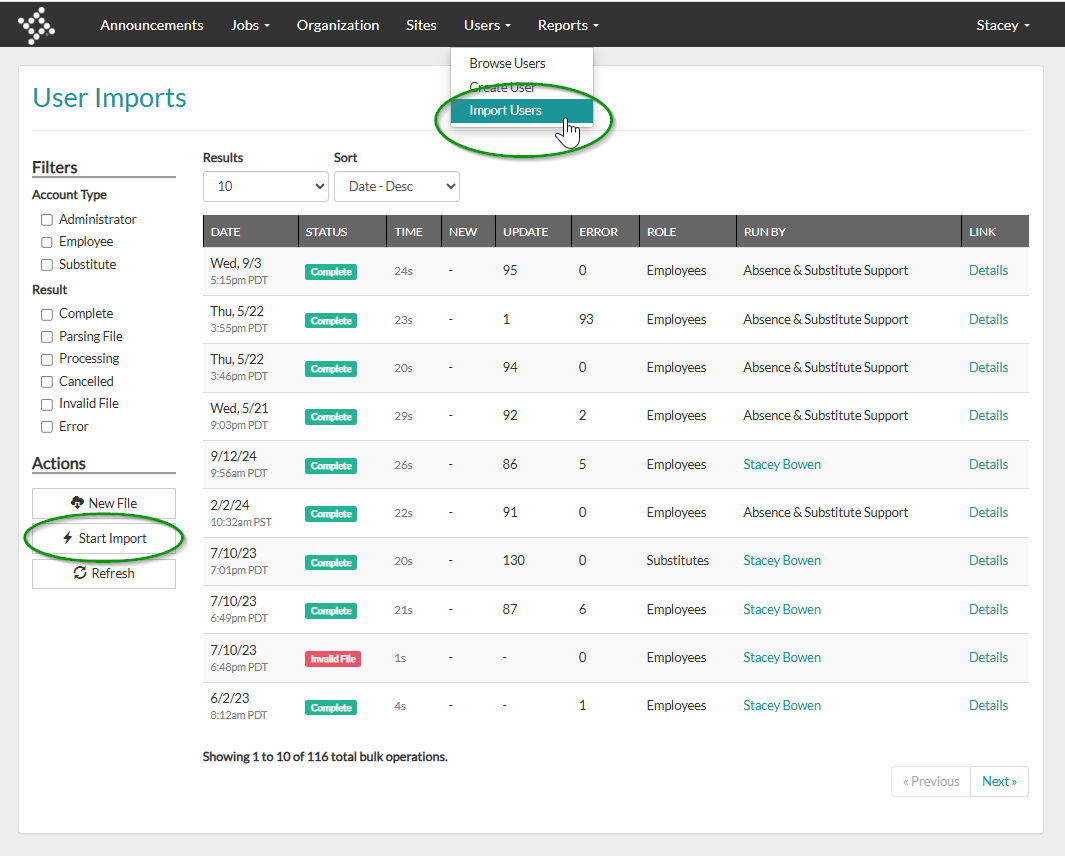
6. To import the updated administrator file, navigate to Users > Import Users and click Start Import.
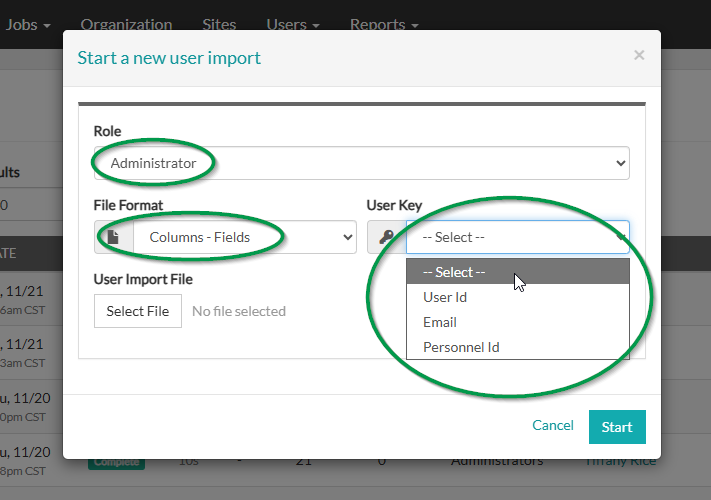
7. Select the Administrator Role and the same File Format you chose when generating the file (in this case the Columns - Fields format) followed by the User Key which is the value the import will key off of for each user, and has three options:
- User Id - The Absence & Substitute Id for each user that is generated in Absence & Substitute and immutable
- Personnel Id - The external system of record Id (typically from an ERP system)
- Email - The email address of each user and their Absence & Substitute username
IMPORTANT:
- For Absence & Substitute generated files, we recommend using the User Id field when bulk updating files that were generated from Absence & Substitute because this Id is native to Absence & Substitute and cannot be change. It also allows Personnel Ids and email addresses to be updated if needed vs. the Personnel Id or Email address which can change a given user. When changed, Absence & Substitute will create a new user instead of updating the existing user because it doesn't recognize the value (email or Personnel Id it is keying off of. This scenario is avoided with the User Id field.
- For externally generated files (from an ERP for example), we recommend using the Personnel Id field because it typically serves as the user's unique Id in that system of record and doesn't change. External exports also don't have the native Absence & Substitute User Id field so it's not possible to key off of that field in this case.
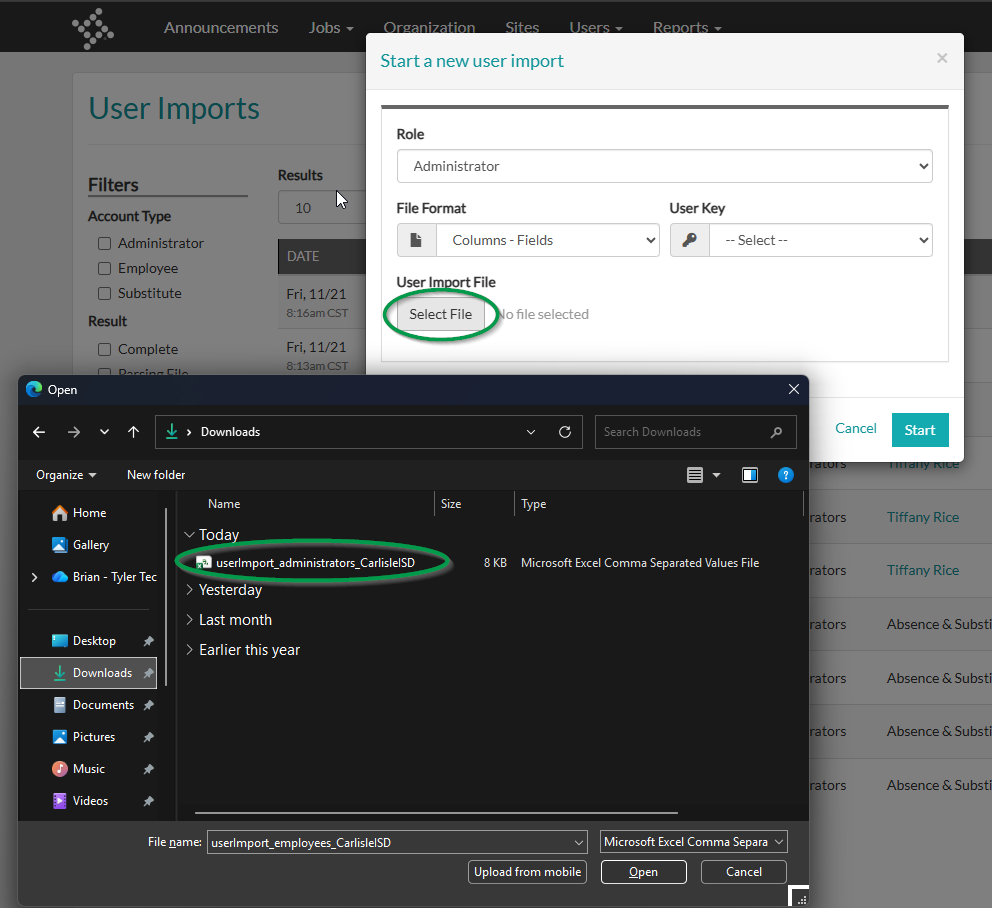
8. Click Select File and locate the .CSV file to upload to Absence & Substitute.
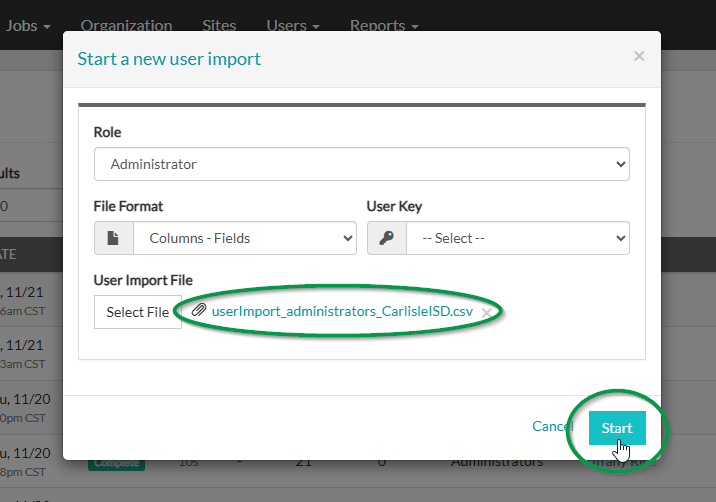
9. Verify the .CSV file is present within the new user import modal, then click Start to start the import.
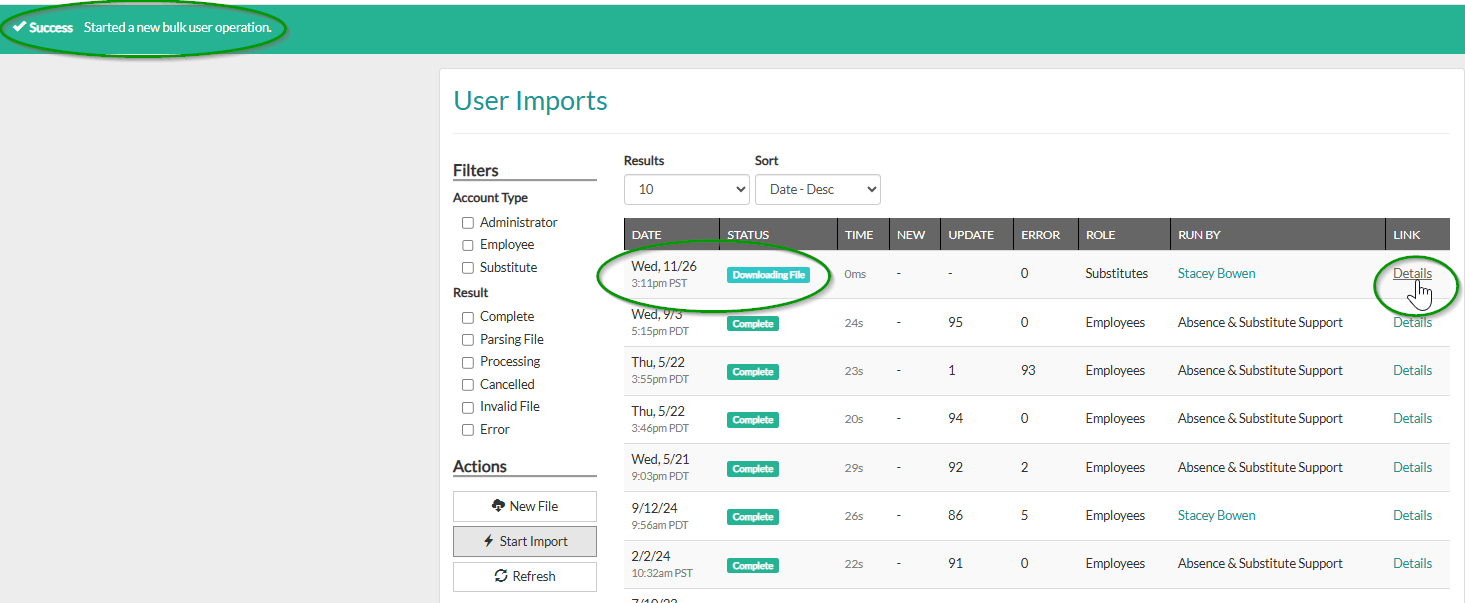
10. Notice the green banner towards the top of the screen indicating a new bulk user operation has started. Click the Details link to view the results of the import. See the How to view user import results solution record.